How to program a scanner for local frequencies comes down to one thing: loading the channels your area’s police, fire, EMS, aviation and amateur radio repeaters already use into the scanner’s memory, either by typing them on the keypad one at a time or, far more reliably, by building a list on a computer and writing it to the radio over a USB cable. On an Uniden HomePatrol set, the whole job runs through Uniden’s own HomePatrol Utility software and takes about half an hour once you have a list worth loading.
The hard part is never the software. It is knowing which channels belong in your area and what type of system they belong to, because the wrong answer there is exactly what produces a scanner that uploads successfully and then hears nothing.
Table of Contents
- 1What You Need
- 2How to Program a Scanner for Local Frequencies Step by Step
- 31. Confirm Your Scanner Model and Software
- 42. Create a Local Frequency List
- 53. Connect the Scanner and Start a New Program
- 64. Add Conventional Channels and Talkgroups
- 75. Set Scan Lists and Storage Locations
- 86. Save, Upload, and Test the Program
- 9Common Mistakes and Quick Fixes
- 10Tips for Reliable Local Scanner Listening
- 11Frequently Asked Questions
- 12Where can I find a current list of local police scanner frequencies?
- 13Do I need a license to listen to a police scanner?
- 14Why is my scanner silent after I upload a frequency list?
- 15Can I program an Uniden scanner on a Mac?
- 16How do I add a ham repeater with a tone offset?
- 17What is a police scanner, and what is it not?
- 18Conclusion
What You Need
Six things. Miss any one of them and you will end up troubleshooting instead of listening.
- Your exact scanner model. Read it off the label on the back or under the battery. HomePatrol and BCD-436HP-style sets use one program; older Uniden and Radio Shack sets use a different one entirely.
- The right programming cable. A data-capable USB cable, not a charge-only cable. This single mismatch is the most common reason a computer never sees the radio.
- Current HomePatrol Utility software from Uniden’s own support site, installed on a Windows computer. A current release matters because Uniden’s servers and the data behind them change.
- Local frequency data you trust. A county or agency site, a state or regional collaboration list, or a commercial service. Free lists are fine as a starting point, but they go stale.
- A written channel plan. A spreadsheet with the channels you want, in the order you want them on the scanner. People who skip this step are the ones who end up re-sorting 400 channels on the radio itself.
- Time to test afterwards. Uploading is not the finish line. Listening for ten minutes with a notebook tells you whether the list was right.
How to Program a Scanner for Local Frequencies Step by Step
1. Confirm Your Scanner Model and Software
HomePatrol Utility exists to program Uniden HomePatrol-series scanners and the closely related BCD handheld models. Download the current version from Uniden’s support page rather than a mirror site, and install it before touching the cable.
Do not substitute other Uniden software. SDS and Sentinel belong to the SDS100, SDS200 and D771/SDS platform and will not talk to a HomePatrol set, no matter how similar the menus look. Older banked-memory Uniden models are a third family again, handled by their own Uniden-DMA or ARC-type software. Check the model first, then download what matches it.
Install any firmware update the scanner offers during this same stage. Updating firmware first means the upload is the last thing you do, rather than something you have to redo after a restart.
2. Create a Local Frequency List
Before any software opens, build the list. Start with your county or city, then pull the state highway patrol frequency, the neighbouring county if you care about the border, and any aviation band channels or NOAA weather radio channels you want.
Sort what you collect into two piles. Conventional channels are fixed frequencies you hear on directly. Trunked systems are different: the agency keys different talkgroups across a changing set of frequencies, so you only program the system ID and the control channel, and the scanner figures out the rest.
For every conventional channel, capture five things from the source: frequency, mode, bandwidth, PL tone if the agency uses one, and a name. A list with blanks in it is a list that produces quiet or squelch-breaking static.
Ham repeaters are the fourth pile and they need extra fields. A repeater transmits and receives on two different frequencies, so you also need the offset and the direction, plus the PL tone if the club requires one.
3. Connect the Scanner and Start a New Program
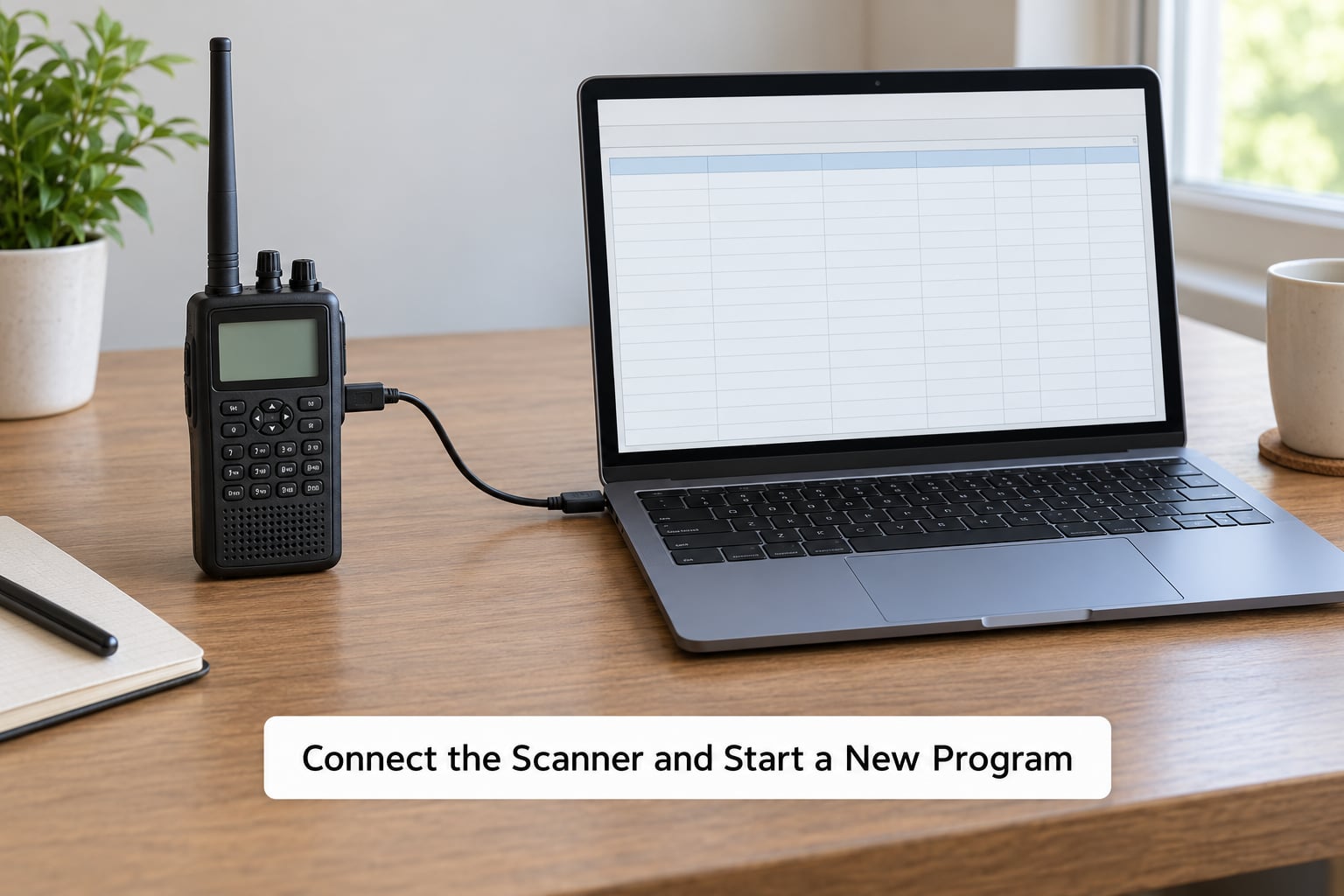
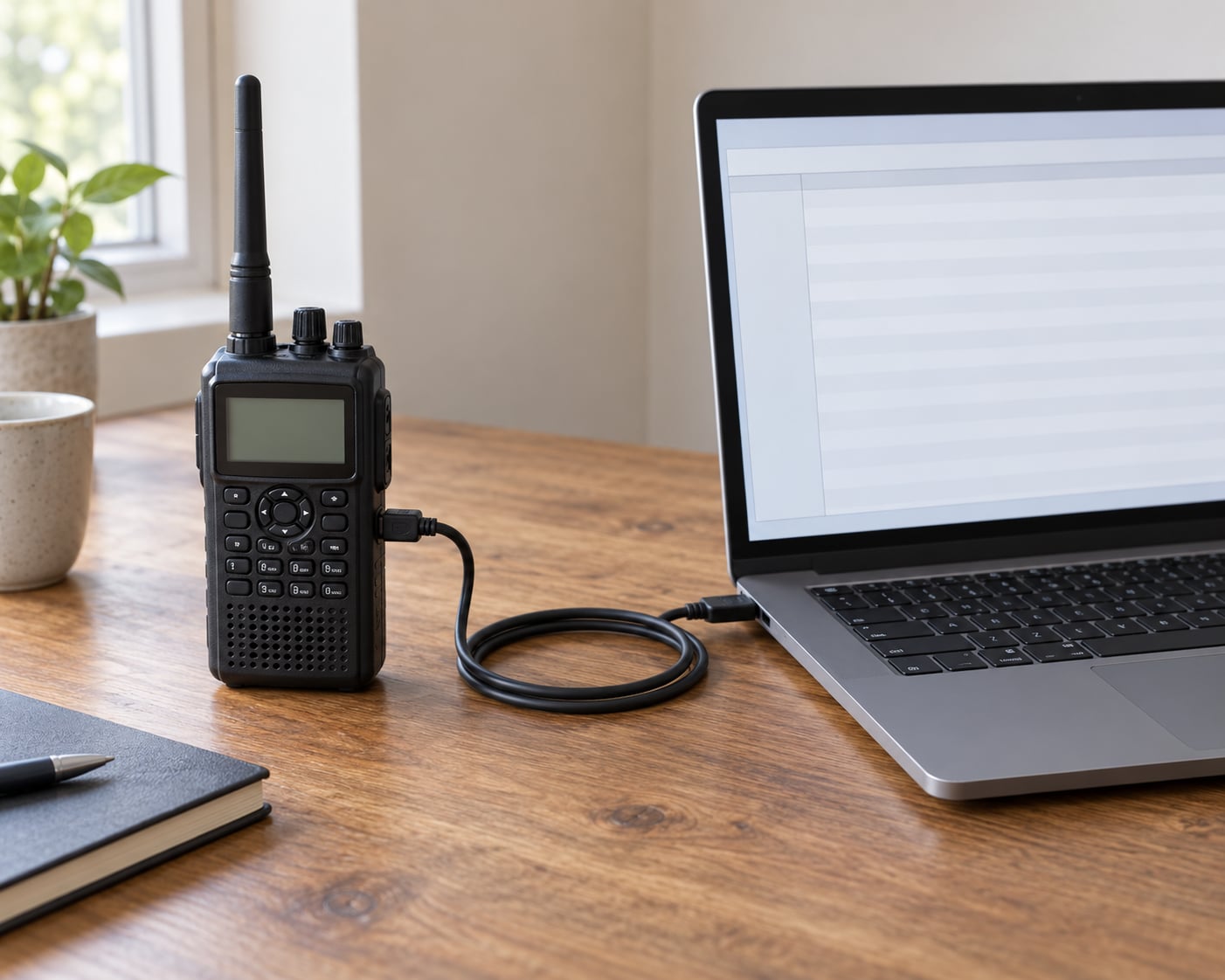
Turn the scanner off. Plug the USB data cable into the scanner first and into the computer second, then power the scanner on. HomePatrol Utility will look for a COM port when it starts; if it does not find one, the cable, the port or the driver is the problem, not the software.
In Windows, open Device Manager and expand Ports (COM and LPT). You should see a new COM number appear the moment you plug in the cable, and it should disappear when you unplug it. That behaviour is the quickest way to tell a real data cable from a charge-only one.
Then start a new program file in the software rather than editing whatever is still in the dropdown. Give it a name with a date in it. A dated name is what saves you when the agency changes its system six months from now.
4. Add Conventional Channels and Talkgroups
For a conventional channel you enter the frequency first, then the mode, then the bandwidth, then the PL tone, then the name you want to see on the display. The name is called an alpha tag, and it is the only thing you will see while scanning, so make it useful: county, service, and agency rather than a number.
Match the mode to what the agency transmits. Aviation and many older public-safety channels are AM. Wide-area conventional voice is usually FM. Narrowband FM is common on modern county systems, and getting this wrong is why a frequency from your source list can be active on the agency end and silent at your desk.
Bandwidth has to match too. A 12 kHz channel programmed as 5 kHz can sound thin, and a 5 kHz channel programmed as 12 kHz picks up noise. If your source data lists a channel width, use it. If it does not, narrowband is the safer default for a current scanner in a current area.
For a trunked system you do not type frequencies at all. You enter the system ID, the system type, the control channel and its bandwidth, the system’s bandplan if it has one, and a list of talkgroups with their alpha tags. Getting the system ID wrong means the scanner never locks. Getting a bandplan wrong on a multi-band system means it stops following the agency halfway through a conversation.
For a ham repeater, the fields are output frequency, input offset, offset direction, PL tone, and mode. A 146.520 MHz simplex channel takes no offset at all. A 145.500 MHz repeater with a negative 2 MHz offset transmits at 143.500 MHz, which is why the offset and its sign matter more than most people expect.
5. Set Scan Lists and Storage Locations
Every channel needs to land in a scan list, because a channel that is not in the list you are scanning is a channel that never plays. Build a handful of lists rather than one giant one: your home county, the neighbouring county, aviation and weather, and a personal list for hams and anything experimental you are testing.
Then pick which list is active. On DMA scanners there are no banks to choose between any more; channels come out of one shared pool, and the scan list is the only thing deciding what you hear. Several people who upgraded from older scanners told me that was the moment their mental model broke, and it is worth pausing on.
Assign priority channels sparingly, to the two or three you cannot afford to miss. Marking a hundred channels as priority does not make them priorities, it just makes the scanner cycle through them first.
6. Save, Upload, and Test the Program
Save the program file, then look for the Erase All Systems and Settings option and use it before writing. Uploading on top of an old program leaves orphaned channels behind that still consume memory and still get priority checked, which is a common source of a scanner that behaves strangely after an otherwise successful update.
Write the file to the scanner, keep the radio powered for the entire transfer, and do not unplug anything. A completed transfer is confirmed by the software reporting a successful write and the scanner returning to normal operation.
Save a backup copy of the program file somewhere separate before you start listening. If you later erase the scanner by accident, or a bad upload half-writes the memory, the backup turns an afternoon of retyping into a two-minute restore.
Then test. Open the scan list you want, start scanning, and check the display for a few things: that channel names appear, that nothing is stuck squelching constantly, and that the traffic you expect to hear is actually coming through. Silence is a result, and it tells you something specific about what went wrong.
Common Mistakes and Quick Fixes
These are the failures that come up over and over, in roughly the order people hit them. Nearly every one of them traces back to something that happened before the upload, which is why the order of the steps above matters as much as the steps themselves.
| Symptom | What it usually means | Fix |
|---|---|---|
| No COM port appears | Charge-only cable, bad port, or missing driver | Swap the cable for a known data cable, try a rear USB port, reinstall the driver |
| Software will not connect at all | Wrong software family for the model | Match the software to the exact model number, not to the brand |
| Transfer starts then stops | Radio powered off, battery low, or a hub in between | Use AC power, connect directly to the computer, leave it alone until the write finishes |
| Channel active but silent | Wrong mode or bandwidth for the channel | Check the agency data for channel width and modulation, then reprogram |
| Scanner squelch opens constantly | Missing or wrong PL tone | Add the PL tone, or set tone skip deliberately if you want less squelch break |
| Nothing to scan after upload | Channels not assigned to a scan list, or no list selected | Reassign the scan list, select the active list, then save and rescan |
| Only old channels work | Stale list, agency has moved or migrated talkgroups | Rebuild from a current source and upload over an erased program |
| Trunked system goes quiet mid-conversation | P25 Phase 2 traffic, or encrypted talkgroups | Confirm the system type and encryption status; a scanner without Phase 2 support cannot follow it |
| Garbled or breaking-up audio on several channels | Simulcast, where one transmitter is received through several others | Turn off dynamic priority monitoring, or pick the sites nearest you |
| Duplicate channels after upload | New program written on top of an old one | Erase all systems and settings, then write a clean program |
Tips for Reliable Local Scanner Listening
Check the source’s date before you trust it. A county agency page that has not been updated in three years is a common outcome, and talkgroups move during a radio system migration far more often than people expect.
Test a frequency before you commit a block of channels to it. An inexpensive software-defined radio on a laptop can tell you in a minute whether a frequency is actually live and what modulation it is using, which is a lot cheaper than programming 200 channels and guessing afterwards.
Keep backups on a schedule, not just after a failure. Save a fresh copy of the program file every time you upload, and keep the last three or four so you can see what changed.
Monitor only, and do not rebroadcast. In the United States, Part 90 public safety traffic is protected, and passing scanner audio on a website, stream or rebroadcast transmitter is not something a receive-only license covers. Listening is easy; publishing what you hear is where people get into trouble.
Do not expect to hear everything. Encrypted talkgroups, including departments that have moved to AES or ADP encryption, are unreadable by design and no scanner setting will change that.
Finally, an antenna argument does more than a better one. A stock rubber duck inside a metal building is the usual reason a scanner that worked at the kitchen table goes silent in a patrol car, and a rooftop or magnetic-mount antenna on a metal surface will fix reception before any software change ever would.
Frequently Asked Questions
Where can I find a current list of local police scanner frequencies?
County and city agency pages are the most direct source, followed by regional collaboration lists and statewide file shares that volunteers keep updated. Commercial services built around the Radio Reference database also work and are usually fresher than free copies, but they carry a subscription. Check the last-updated date before you program anything, because agencies move channels during system upgrades and a stale list is why a scanner suddenly hears nothing.
Do I need a license to listen to a police scanner?
In the United States, no license is required to receive public safety, broadcast or amateur transmissions. You do not need to be a ham to monitor local fire dispatch, and you do not need one to hear the aviation band. The rules that do apply: you may not rebroadcast or publish scanner audio, and you may not transmit on any frequency without the appropriate authorization. A cheap receive-only antenna and a scanner are all the equipment involved.
Why is my scanner silent after I upload a frequency list?
Work through the causes in order. Channels may not be assigned to a scan list, or no scan list may be active. The mode or bandwidth may not match what the agency transmits, which is the most common reason a frequency that is busy elsewhere is dead at your desk. A missing PL tone can also stop a channel opening. If the traffic is P25 Phase 2 or encrypted, no scanner setting will recover it, and the scanner must support that system type to follow the conversation.
Can I program an Uniden scanner on a Mac?
Uniden’s own utilities, including HomePatrol Utility and Sentinel, are Windows programs and there is no native Mac version. Mac owners on the Uniden and Radio Reference forums generally report success by running the Windows tool inside a virtual machine on the Mac, using Boot Camp on an Intel machine, or working on a separate Windows laptop. Free cross-platform tools exist, but check that your exact model and system types are supported before you rely on one for a trunked system.
How do I add a ham repeater with a tone offset?
Pull the repeater’s output frequency, offset and direction from a repeater book or the club’s site, then enter them as one channel. A negative offset means the frequency you transmit on is lower than the frequency you listen to, so a 145.500 MHz repeater on a negative 2 MHz offset transmits at 143.500 MHz. Add the club’s PL tone if it has one, set the mode to FM, and give the channel a useful alpha tag. Simplex channels need no offset at all.
What is a police scanner, and what is it not?
A police scanner is a radio receiver that searches a stored list of frequencies instead of tuning to one channel. Modern scanners also decode digital trunked systems, following an agency across changing talkgroups and frequencies. What it is not is a two-way radio: you transmit nothing, and you cannot talk to dispatch. Nor can it decode encrypted traffic, which is designed to be unintelligible to the general public.
Conclusion
Start with the model number and the software that matches it, then build a written list of local channels from a source with a recent update date. Upload it over USB onto an erased program, save a backup before you listen, and spend the first ten minutes checking channel names, squelch behaviour and the traffic you expect to hear.
That first hour does more than get you local dispatch. It also tells you which part of the process you will want to automate next time a new channel shows up, and which files you need to keep current so the radio keeps working when the agency changes its system. Follow those steps and how to program a scanner for local frequencies stops being a frustrating evening and becomes a ten-minute job every time.