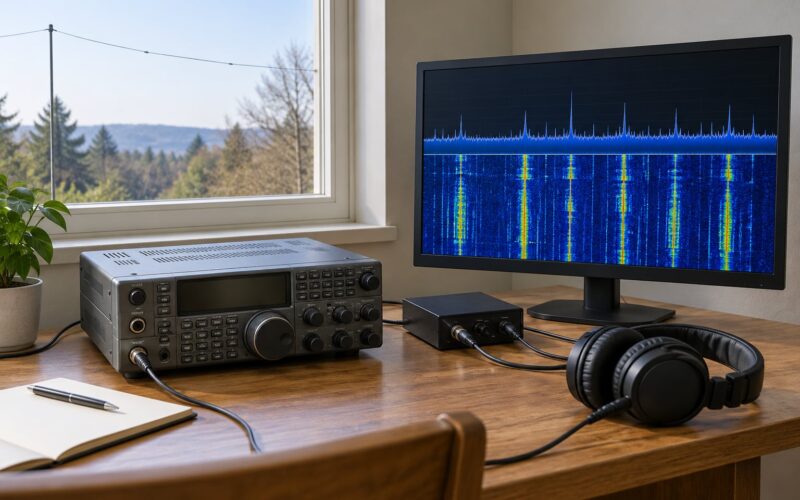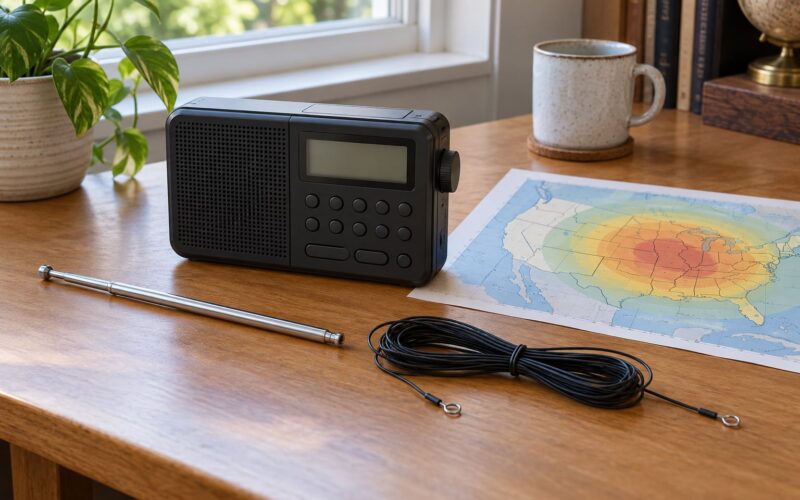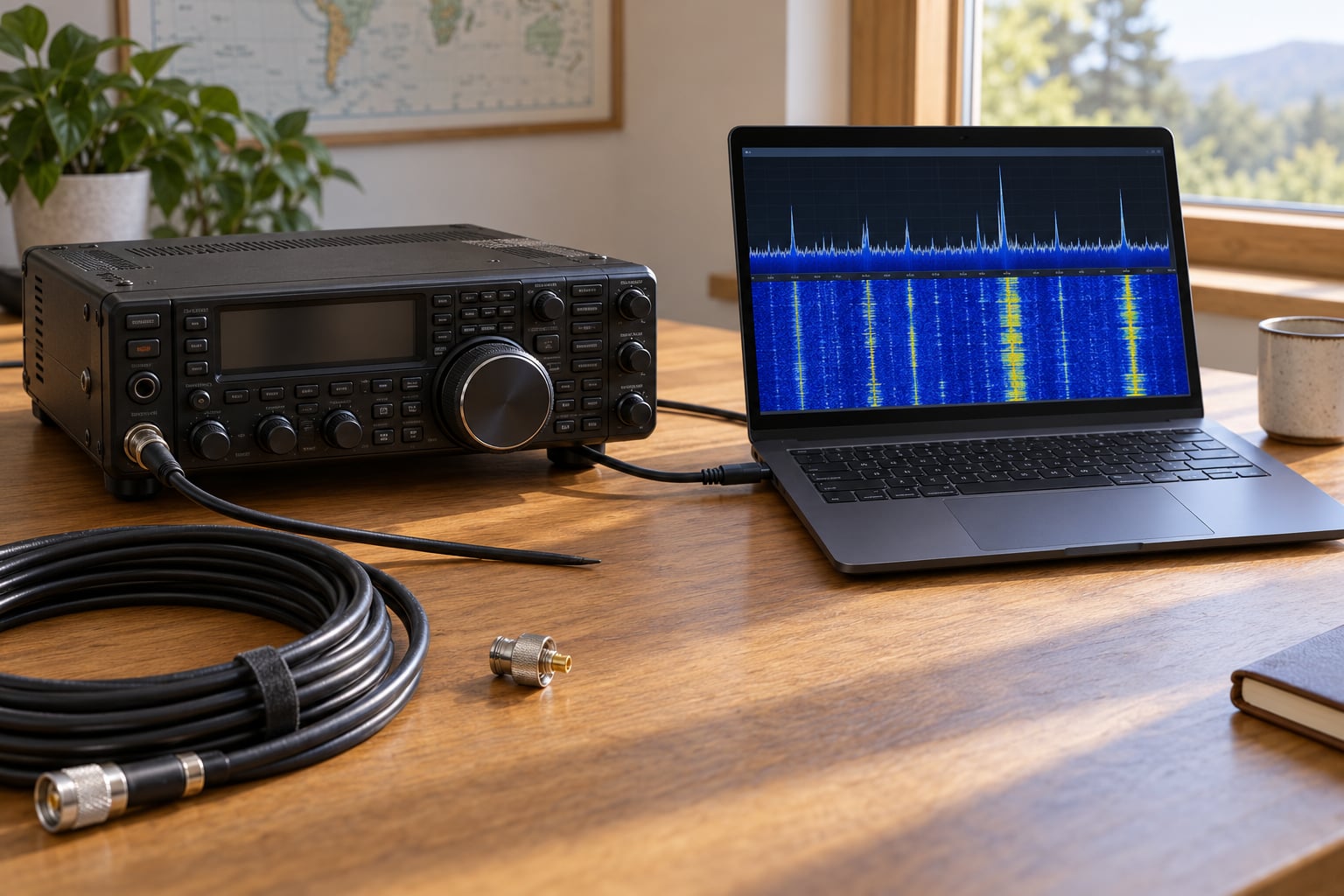
To decode FT8 signals for the first time, you need a receiver or transceiver feeding audio into WSJT-X, the clock on that computer synced to UTC, and the radio tuned into the digital segment of a band. Once those three pieces line up, the software pulls call signs and grid squares out of the waterfall automatically, with no typing and no reading by ear.
Most new operators get their first decode in an evening, but almost none of them get it in ten minutes. The audio path between radio and computer is where people stall, and it stalls them because nothing on screen tells them the sound is wrong. Fix that first and the rest is short.
This guide walks the whole path: the gear list, the seven setup steps, how to read a decode, how to finish an exchange, and what to check when the waterfall stays blank.
Table of Contents
- 1What You Need
- 2Step-by-Step: How to Decode FT8 Signals
- 31. Set Up Your Radio and Computer
- 42. Choose the Correct FT8 Frequency
- 53. Start WSJT-X and Select FT8 Mode
- 64. Read the First FT8 Decodes
- 75. Check Your Own Signal and Call Sign
- 86. Make and Complete Your First FT8 Exchange
- 97. Save the Contact and Improve Reception
- 10Common Mistakes
- 11Nothing decodes at all
- 12The waterfall is empty even though the S-meter shows signal
- 13You hear your own voice from the speaker but the computer sees silence
- 14Audio level too low or clipping
- 15Clock keeps drifting
- 16You are transmitting, not decoding
- 17Split operation confusion
- 18You transmit before your audio is proven
- 19Frequently Asked Questions
- 20Do I need to transmit to decode FT8 signals?
- 21Which frequency is best for FT8 for a beginner?
- 22Why is FT8 considered a weak signal mode?
- 23Why does WSJT-X decode nothing even though I hear stations?
- 24Do I need a licence to decode FT8?
- 25Conclusion
What You Need
Six things, and only one of them is fussy. Have all of these in front of you before you start changing settings, because half of beginner frustration comes from fixing the software while the antenna is still disconnected.
- A radio that covers the band you want to try. Any HF transceiver with a USB data mode works. So does an FM receiver with an antenna adapter, or an RTL-SDR dongle if you only want to receive.
- An antenna. FT8 is not magic. It needs an antenna that works on 20 meters if that’s the band you pick. A wire strung outdoors beats a collapsed whip indoors by a wide margin.
- A computer with a sound card. Built-in is fine. A USB audio interface is better if your laptop’s input is noisy.
- The audio connection. A shielded cable with a 3.5 mm jack on one end and the right adapter on the other, going from the radio’s line or headphone output into the computer’s input.
- WSJT-X. Free software from the WSJT-X home page. On a Mac or Linux machine you may need to allow the installer to run and may need to set the audio input from within the program rather than the system mixer.
- Your call sign and grid locator. WSJT-X asks for both on first run. The grid locator uses the Maidenhead system, a six-character code like FN31pr that narrows your position to about a mile square.
CAT control for tuning the radio is helpful but not required for decoding. You can run a separate tuning program, or set the radio’s frequency once and leave it. Most beginners decode happily for a week before they bother with PTT.
Step-by-Step: How to Decode FT8 Signals
1. Set Up Your Radio and Computer
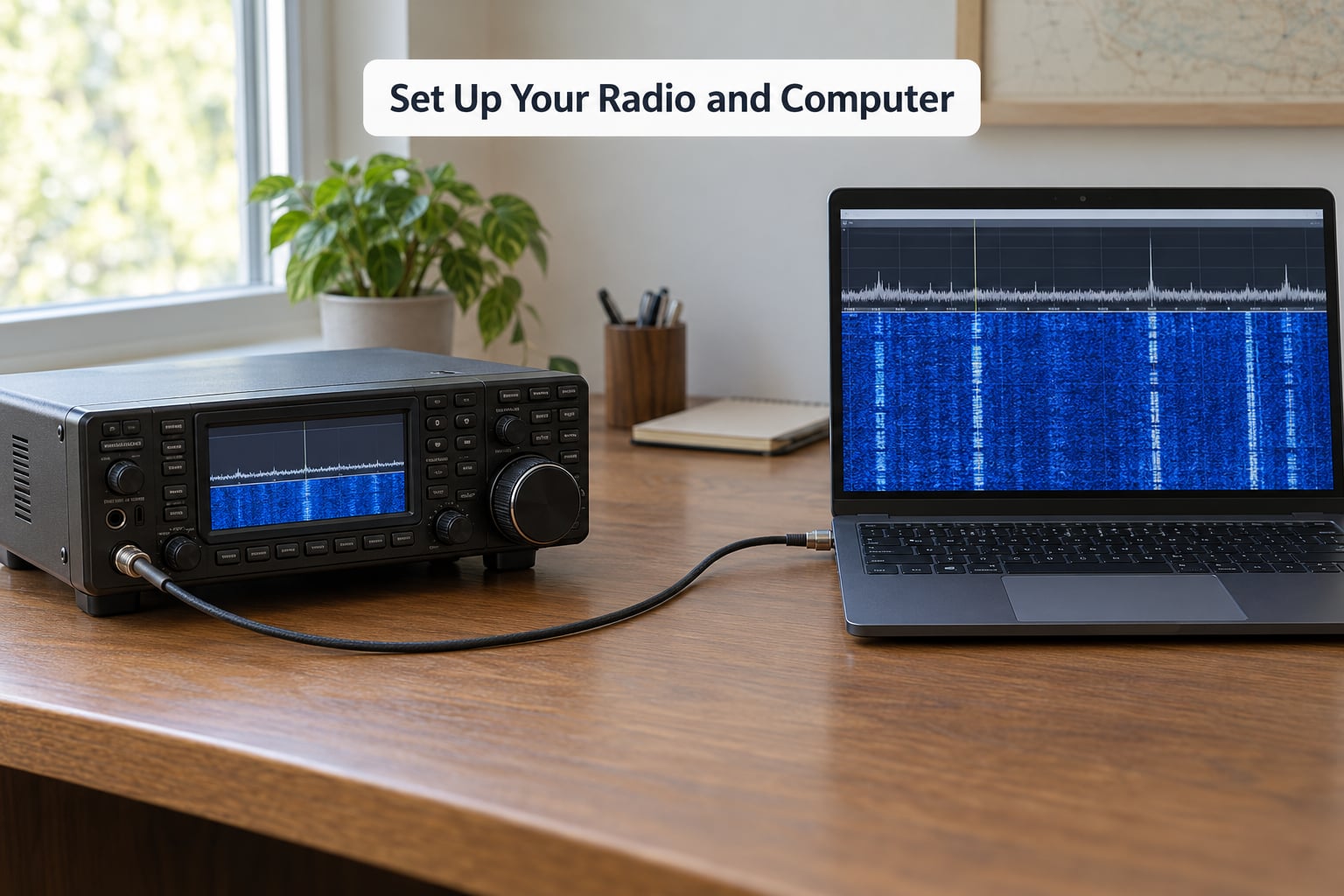
Plug the audio cable from the radio’s data or line output into the computer’s microphone input. That is the whole receive path, and if you get it wrong nothing else you do will matter.
On Windows, the Settings sound panel lists every recording device, including ones you didn’t know you had. On macOS, the input list lives in System Settings under Sound. On Linux with PipeWire, the input shows up under the source list. Pick the device your cable is plugged into and note its exact name, because WSJT-X will need that name typed in later.
If your radio has a dedicated USB data port instead of an analog jack, use it. Direct USB audio skips the sound card entirely and removes a whole category of noise and level problems. Many Icom, Yaesu and Kenwood rigs expose a USB B or mini-B data port on the back for exactly this.
Two settings on the radio matter now. Turn VOX off, because you don’t want the rig keying itself from room noise. And put the radio in USB or DATA mode rather than LSB, since FT8 is transmitted on the upper sideband.
2. Choose the Correct FT8 Frequency
FT8 lives in a narrow digital segment, usually about 3 kHz wide, just above the CW frequency on each band. It is not scattered through the band like SSB chatter, and if you’re listening in the wrong 3 kHz you will see nothing at all.
Tune slightly below the segment’s lower edge, around 150 Hz below the first signal, and let the waterfall show you the traffic. On 20 meters that’s roughly 14.074 MHz. On 40 meters it’s about 7.074 MHz, and on 80 meters about 3.574 MHz.
These are starting points, not guarantees. Band plans shift with the seasons and with your country’s allocation, so confirm the segment for your region before you start hunting for the bottom of the waterfall.
For a first session, pick the band your antenna actually works on. A beginner on 20 meters with a good vertical hears far more FT8 than a beginner on 160 meters with a random wire indoors, and 20 meters is usually open day and night.
3. Start WSJT-X and Select FT8 Mode
Launch WSJT-X and let it run for a moment before touching anything. The first launch asks for your callsign and grid locator, and those go into every transmission you make later, so get them right.
Select FT8 from the mode menu. Then open Settings, go to the Radio tab, and set the port and baud rate. Most USB devices use 38400 baud; older rigs and some serial adapters use 19200. If the port list shows several COM numbers, the radio’s data port is usually the one that appears when you plug the cable in.
In the General tab, confirm your computer’s time zone is UTC or that WSJT-X’s offset calculation is right. That field is separate from your system clock, and it is wrong often enough to cause silent decoding failures.
In the Audio tab, choose the input device you identified earlier by name. Nothing else in the Audio tab matters for receiving, so resist the urge to start moving sliders.
4. Read the First FT8 Decodes
WSJT-X decodes in the seconds immediately after each signal ends, so within a minute or two of tuning in you’ll see lines appear in the large text window. Each line is one transmission decoded into readable text.
A typical line looks like this:
K7XYZ FN42 13 dB -08 dt 0.4 1500 Hz FT8
The call sign comes first, then the Maidenhead grid locator, then a signal-to-noise number followed by dB, then the delta time offset, then the audio frequency within the passband. Negative dB means the signal was below your receiver’s noise floor, which is normal and not a problem. Delta time should read near zero; large values mean your clock is off.
The window will also fill with CQ lines from stations looking for contacts. Those are the ones you reply to.
Odd-looking fragments show up too. Short strings of random characters are usually false decodes from noise, and the thin grey vertical lines repeating at regular intervals down the waterfall are an artifact of the software, not real signals.
5. Check Your Own Signal and Call Sign
If you have a club station or a friend transmitting, look for your own call sign in the decode window. Seeing your own grid square come back confirms your transmit audio, your clock and your logging settings all at once, which is why it’s the first test most clubs run.
Ignore lines where your call sign appears with no grid locator or an unreadable trailing character. Those are partial decodes, and answering one wastes a transmission. A genuine line has a call sign, a grid locator, and a signal report in that order.
One number deserves attention. If your incoming signal reports come back consistently positive, like +05 dB or +12 dB, your transmit audio is too hot and you’re clipping. Back the drive or mic gain down until reports sit near zero or slightly negative.
6. Make and Complete Your First FT8 Exchange
Double-click a CQ line to load that station into the transmit window. The software fills in a standard exchange with a signal report computed from your last decode of that station, so in most cases the message is already written for you.
The sequence has four stages, and you should see each one move along:
- CQ — the other station is calling for anyone.
- Your call, their call, both grids, and a signal report — often abbreviated on screen.
- RRR or RR73 — their acknowledgement that your report arrived. RR73 means the same thing and is simply shorter.
- 73 — their sign-off, which also confirms you were copied.
If you get no reply to your report, send it once more before moving on. Bands get busy, transmissions get lost, and a station that stops after two attempts is often not broken, just busy.
WSJT-X auto-sequences the whole exchange and changes the outgoing message at each stage, so you mostly select a decoded line and let the program do the rest. Newer versions decode on several threads in parallel, which finds more signals from a crowded band than the older single-pass decoder did.
7. Save the Contact and Improve Reception
Completed contacts appear in the log automatically. Export them as ADIF from the File menu and upload to Logbook of the World or a hosted log such as QRZ or eQSL if you want the credit online.
Improving reception is mostly physical. Check the antenna feed line for a poor connection or water intrusion, because a lossy feed line quietly eats several decibels before the software ever sees the signal. A loose SMA barrel adapter will do the same thing.
Run WSJT-X for twenty minutes and note how many decodes you get. Then turn on the Deep setting or extra decode passes and run twenty minutes again. If the count jumps, you were under-sampling a noisy band and the deeper decoding helps.
Finally, check the PSK Reporter with your callsign after a session. It plots who heard you and on what bands, which is the fastest honest answer to the question of whether your setup is actually getting out.
Common Mistakes
These are the errors that account for nearly every stalled beginner setup, in the order they tend to happen.
Nothing decodes at all
Work down this list before changing any slider. Is the radio in USB or DATA mode rather than LSB? Is the audio cable actually in an input, not a headphone output? Is WSJT-X showing the right input device in its Audio tab? Is the clock synced? Clock drift is the quiet one, because a radio that’s a second off still produces a waterfall full of activity but almost no valid decodes.
The waterfall is empty even though the S-meter shows signal
You’re tuned to the wrong segment. FT8 signals sit in a narrow band, and strong local voice traffic elsewhere on the dial will produce plenty of S-meter movement with nothing to decode. Look for a cluster of thin vertical traces and tune down a few hundred hertz at a time until decodes appear.
You hear your own voice from the speaker but the computer sees silence
That’s a receive-side monitoring path, not a USB audio path. Many radios monitor the received audio internally without passing it through the data jack. The fix is to feed the sound card from the radio’s line or headphone output, or to move the radio into DATA mode where monitoring follows the USB path.
Audio level too low or clipping
Low input level gives you decodes only from strong local stations. Clipping shows up as positive signal reports coming back from other operators. On receive, raise the drive or input gain until WSJT-X’s input meter peaks around half scale on a typical signal. On transmit, use your radio’s ALC reading as the guide and keep the needle just under maximum deflection.
Clock keeps drifting
Windows machines sync automatically. Mac and Linux often need an NTP client installed and pointed at a public time server, and laptops that sleep can drift minutes in an hour. Portable operators away from internet need a GPS-based reference or a disciplined oscillator. The symptom is decodes that were solid ten minutes ago and have now stopped working, with delta time drifting away from zero.
You are transmitting, not decoding
Newcomers sometimes confuse the sound of FT8 with a faint digital voice signal and try to read it by ear. It can’t be copied by ear. Every FT8 transmission is 15 seconds long, and the information is in phase relationships between tones, not in anything resembling speech. If you can hear a rhythmic pulsing sound, that’s FT8, and the message is already in the text window.
Split operation confusion
When WSJT-X transmits, it must move the radio up by about 2.5 kHz so it doesn’t hear itself. Radios with a split function can do this themselves, and you set the split offset in WSJT-X to match, usually with Rig split selected. Radios without split are handled with Fake It, where WSJT-X shifts the dial and the radio follows silently. Beginners often end up transmitting right on top of the incoming signal, and their own audio knocks out everyone on the frequency.
You transmit before your audio is proven
Use a dummy load, a low power setting, or simply wait until someone reports you on PSK Reporter before running any power. There’s no prize for being the loudest signal on a band that’s already crowded.
Frequently Asked Questions
Do I need to transmit to decode FT8 signals?
No. FT8 decoding is receive only. A radio, a suitable antenna, an audio path into the computer, WSJT-X and a synced clock are enough to see every decode on screen. Many listeners start with an RTL-SDR dongle and no transmitter at all, which costs very little and teaches you to read the waterfall before you worry about PTT or power levels.
Which frequency is best for FT8 for a beginner?
Start on 20 meters around 14.074 MHz. The band is open day and night, the activity level is high, and a simple vertical or dipole gets you heard. Tune about 150 Hz below the lowest signal so the whole digital segment fits in your receiver passband. Confirm the current band plan for your region before a session, because segments get adjusted with the seasons.
Why is FT8 considered a weak signal mode?
FT8 uses eight-frequency shift keying and structured error correction, which lets WSJT-X pull readable text out of signals sitting well below the noise floor. Most successful contacts report signal-to-noise numbers between negative 10 and negative 20 dB, meaning the signal arrived weaker than the receiver’s own noise. That is normal operation, not a fault in your antenna or radio.
Why does WSJT-X decode nothing even though I hear stations?
Check four things in order. The radio must be in USB or DATA mode, not LSB. The audio cable must land in a recording input, not a headphone output. WSJT-X must be set to the correct input device in its Audio tab. Finally, confirm your computer’s clock is synced to UTC, because an offset clock produces a busy waterfall with almost no valid decodes.
Do I need a licence to decode FT8?
You do not need a licence to receive or decode FT8 signals, and listening in is legal in most countries. Transmitting does require a valid amateur radio licence in the country where you operate, and your call sign has to appear in the transmission. Plenty of people monitor for months, log what they hear and only take the exam when they are ready to answer.
Conclusion
Start with one action tonight: connect the audio cable, tune to about 14.074 MHz, set the radio to USB, and leave WSJT-X running for ten minutes with the clock synced. A successful first decode is a line in the text window with a call sign, a grid square and a signal report in it, usually within a couple of minutes.
Not every transmission will copy. Some are below what any receiver can pull out, and some are mid-exchange with someone else. Let the waterfall fill up and pick the clear ones, and in a few sessions the software will be handling contacts for you while you work out where to put the antenna next.